Manage your circles
Family, grandparents, school carpool—you can belong to more than one circle. Here's how to manage them.
Transcript
Family, grandparents, school carpool—you can belong to more than one circle. Here's how to manage them.
Tap the circle name at the top to switch between circles.
To manage a circle, open the plus menu and tap Circle Settings.
A crown means a circle has Premium. The free plan includes one circle, while Premium lets you have up to ten. To give everyone in a circle Premium, tap Upgrade to Family. The Family plan covers up to six members.
If you created a circle, you can rename it. Everyone in the circle will see the new name.
Open Members to see who's in the circle. Tap Remove to remove someone. They'll immediately lose access to the other members' locations.
Under Join Code, you can copy or share the code, create a new one, or turn it off to stop new people from joining.
Members can view the join code too, but only the circle owner can change it.
To leave a circle, tap Exit Circle. The owner can't leave, but they can delete the circle by typing its name to confirm.
WheresNow Family. Stay close, wherever you are.
More videos
 0:55
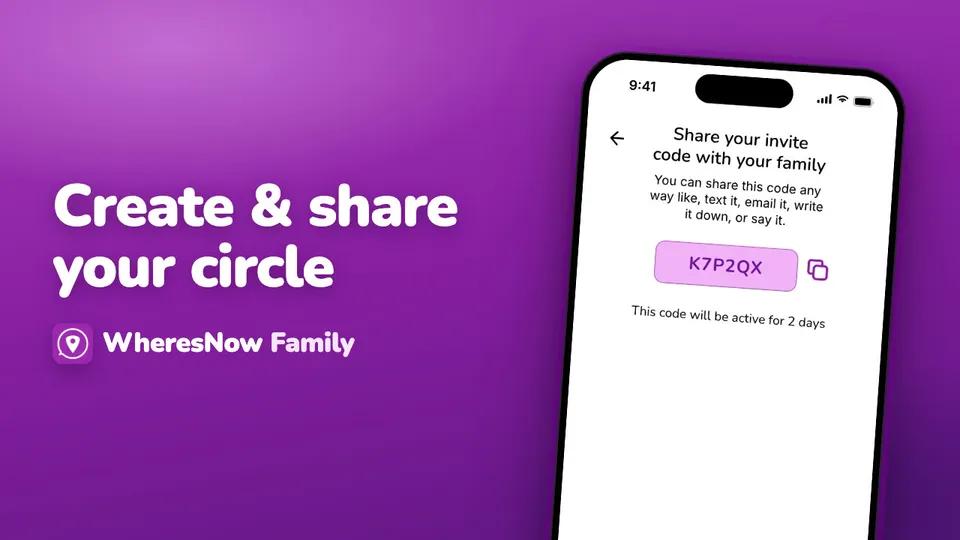
Create your circle and invite your family
Name your circle, share its 6-character invite code, and make a new code when it expires.
 1:05
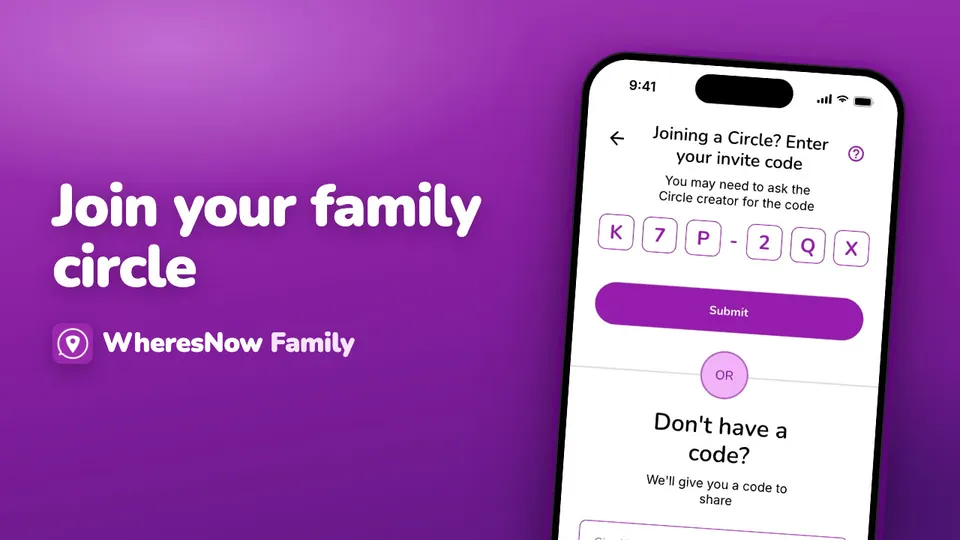
Join a circle
Enter the invite code someone sent you, what to do if it doesn't work, and who is told when you join.
 0:34
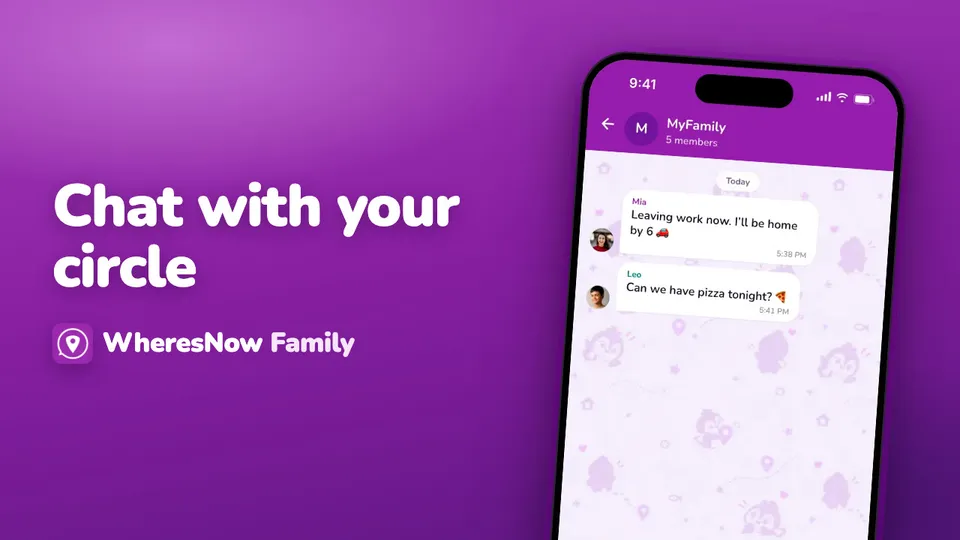
Chat with your circle
All your chats in one place, from circles and direct messages to bubbles.