Back to Help Center
Interactive Guide
Master WheresNow
Explore our features through this visual walkthrough. Learn how to stay connected and keep your family safe.
Adding Places
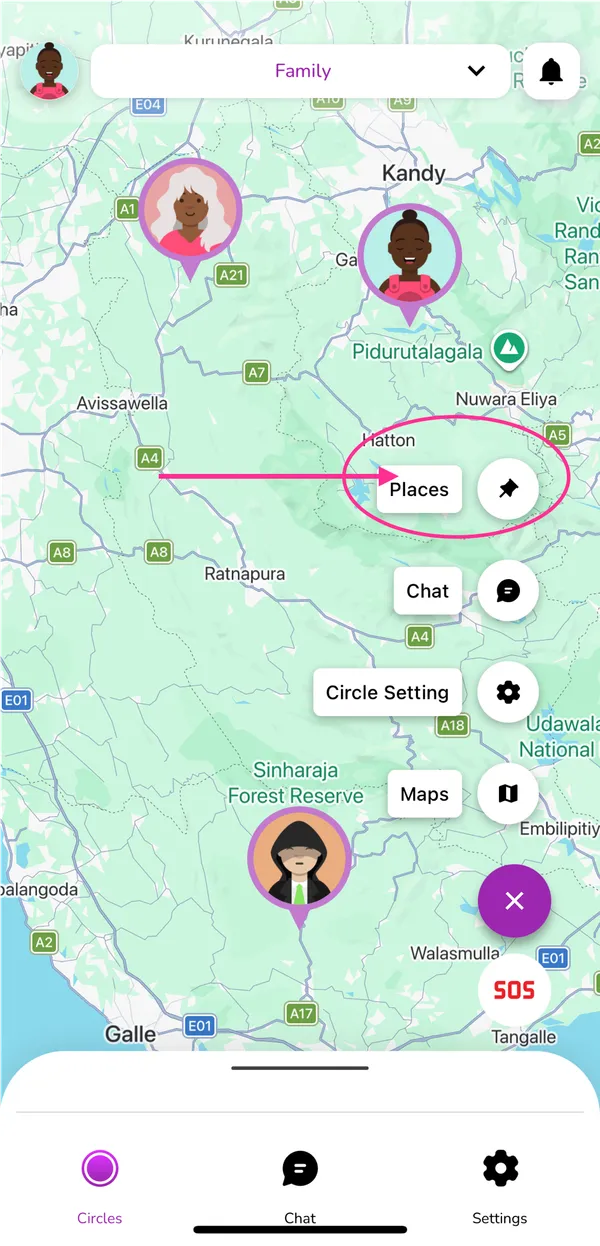
Open Places
On the map screen, tap the Places icon to view and manage your saved places.
Adding Places
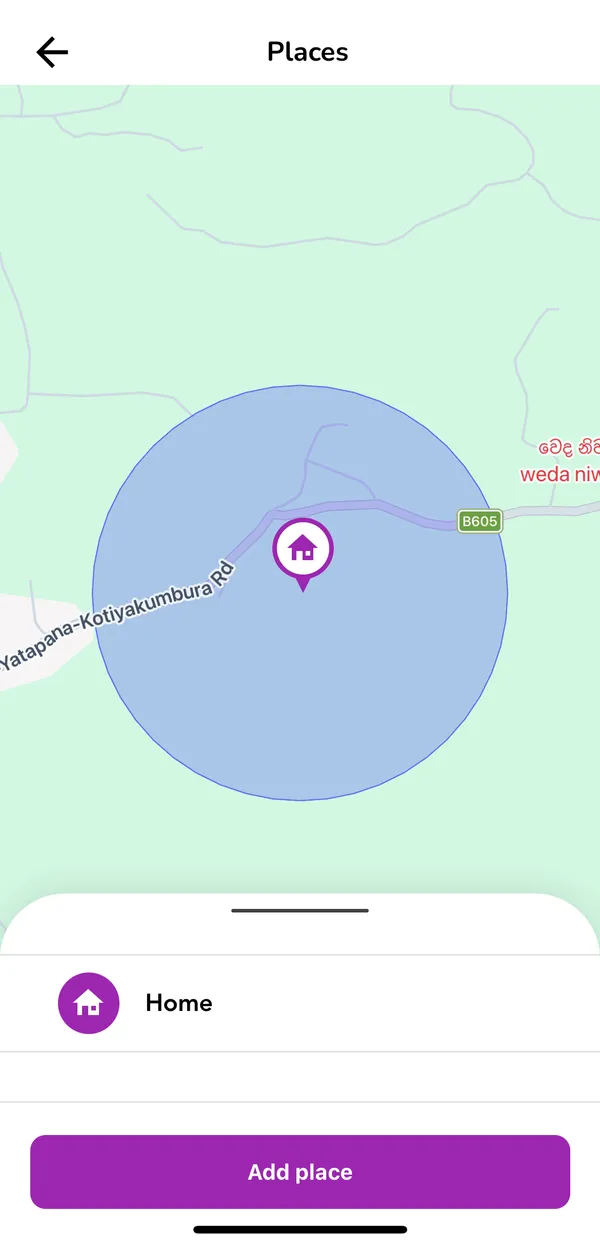
View Saved Places
This screen displays all previously added places. Tap the Add Place button to create a new place.
Adding Places
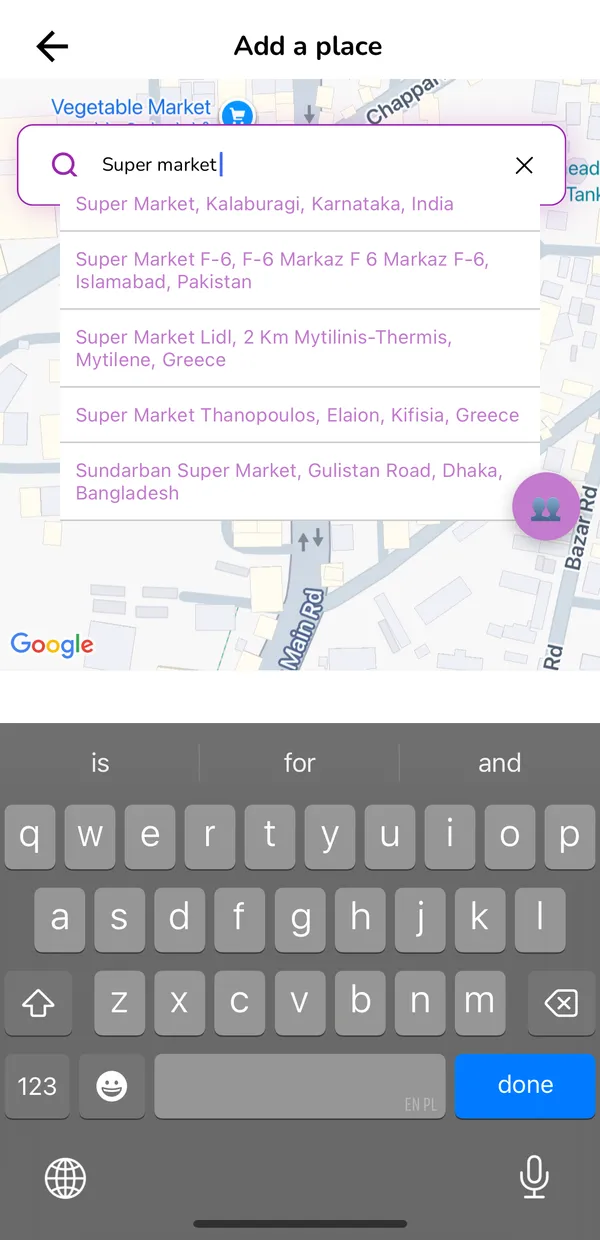
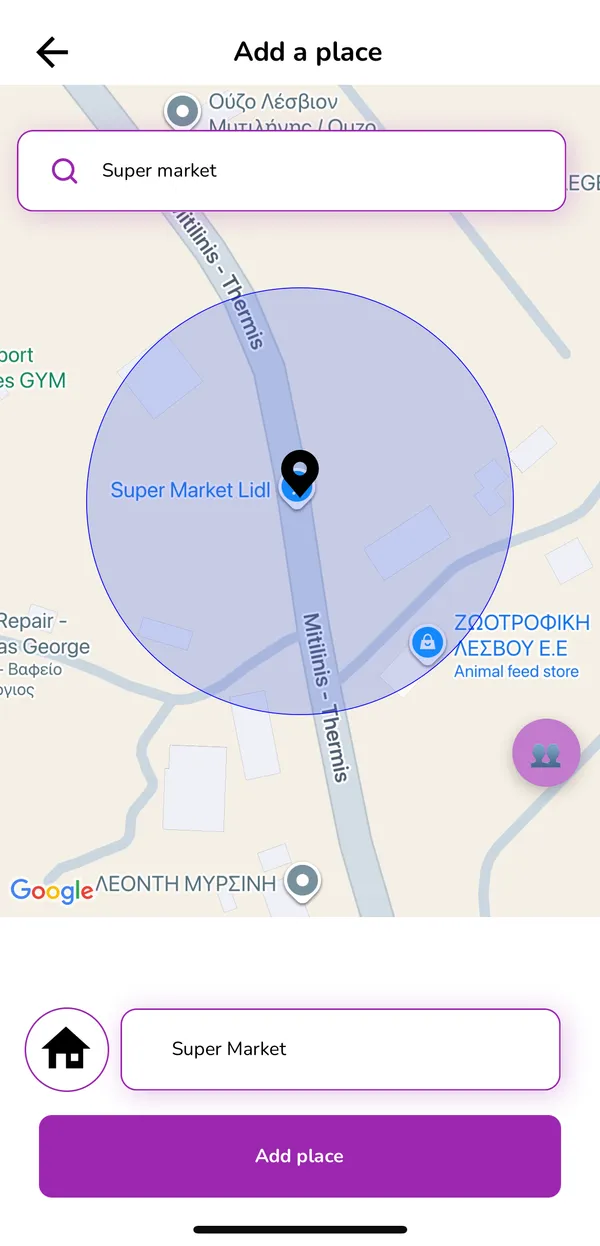
Select a Location
Choose a location directly from the map or search for a place and select it from the suggested results.
Adding Places
Name and Save Place
Enter a preferred name for the selected location, then tap Add Place to save it.
Adding Places
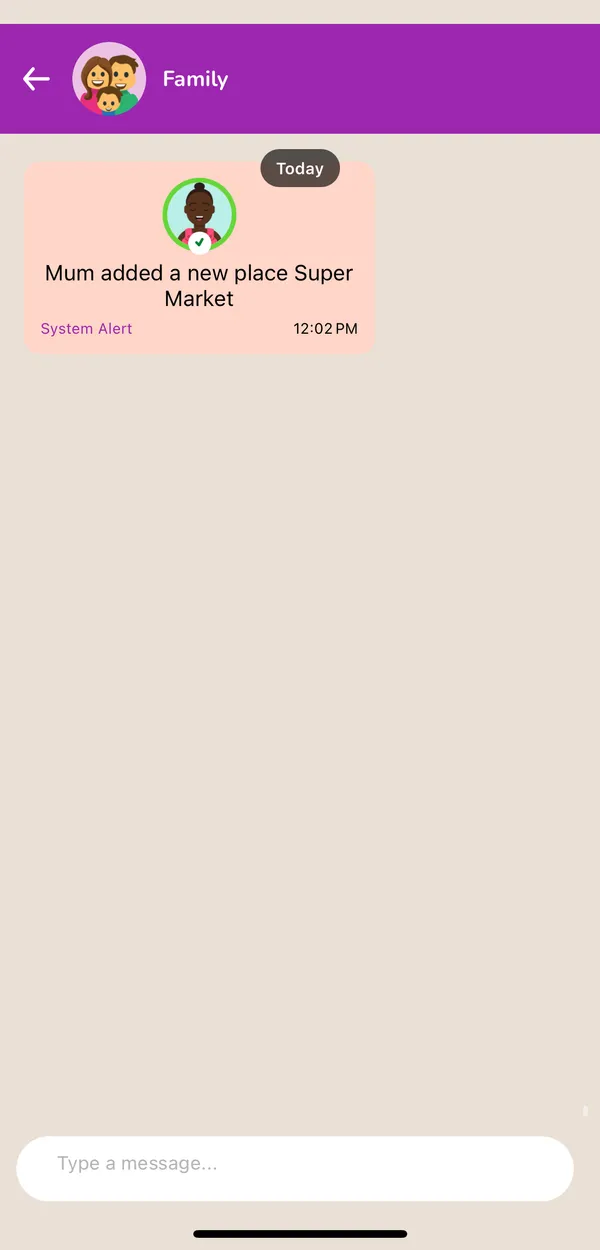
Place Added Successfully
Once the place is added, all circle members will be notified about the new saved place.
Adding Places
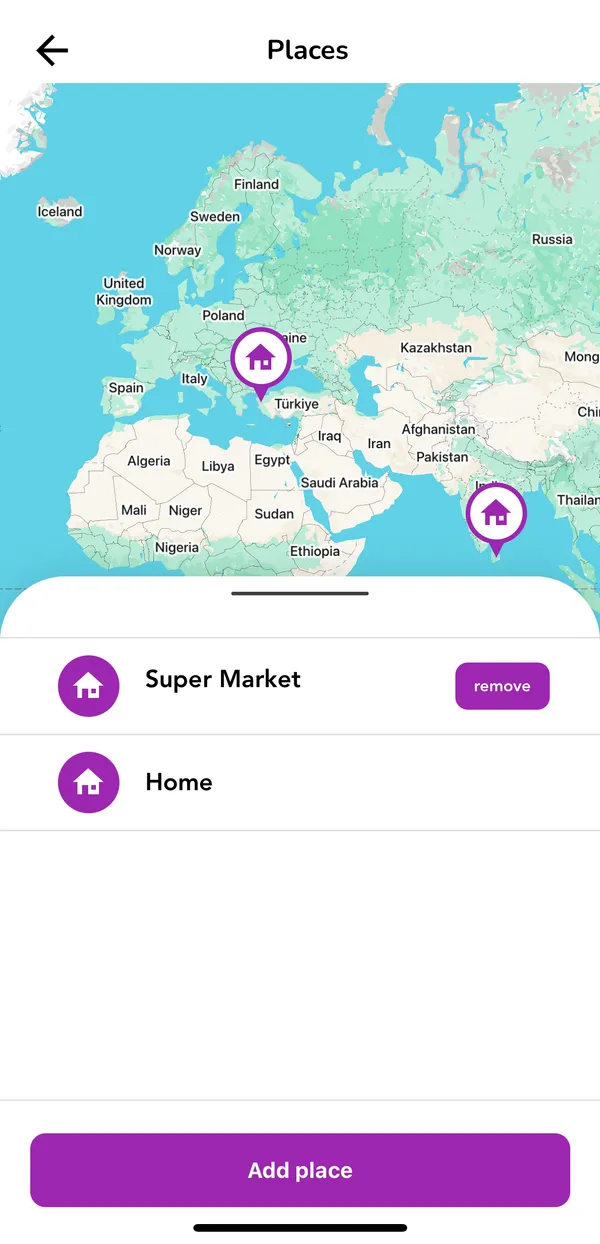
Remove a Place
To delete a saved place, open the Places screen and tap the Remove button next to the place name.
Adding Places
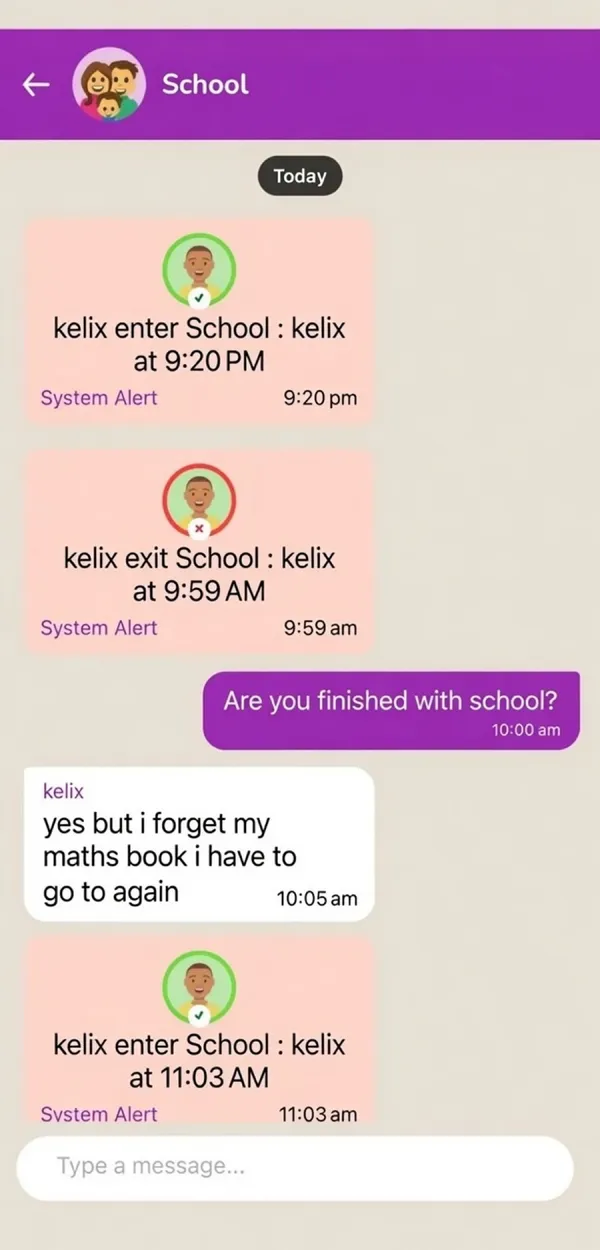
Place Entry & Exit Alerts
Circle members receive notifications whenever a member enters or leaves a saved place.