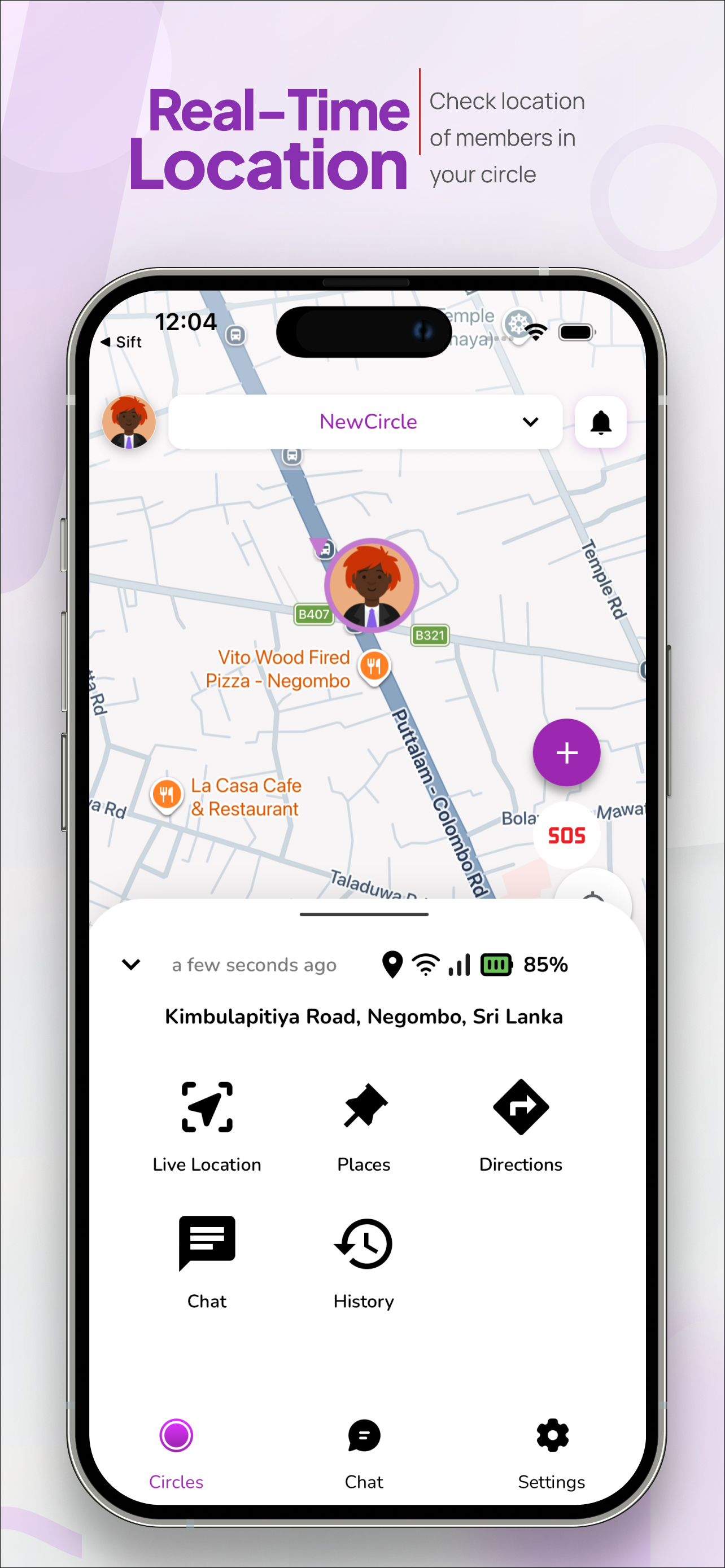
A Circle is the core unit of WheresNow. It's a private group where every member can see each other's location on a shared map. Here's how to get one running in under five minutes.
What is a Circle?
Think of a Circle like a private room. Only the people you invite can see the map inside it, and only within that specific Circle. You can create as many Circles as you want — one for your immediate family, one for extended family, one for a group of close friends on a road trip.
Circles are completely independent. Sharing your location in your Family Circle doesn't automatically share it in any other Circle you belong to.
Step 1: Create your first Circle
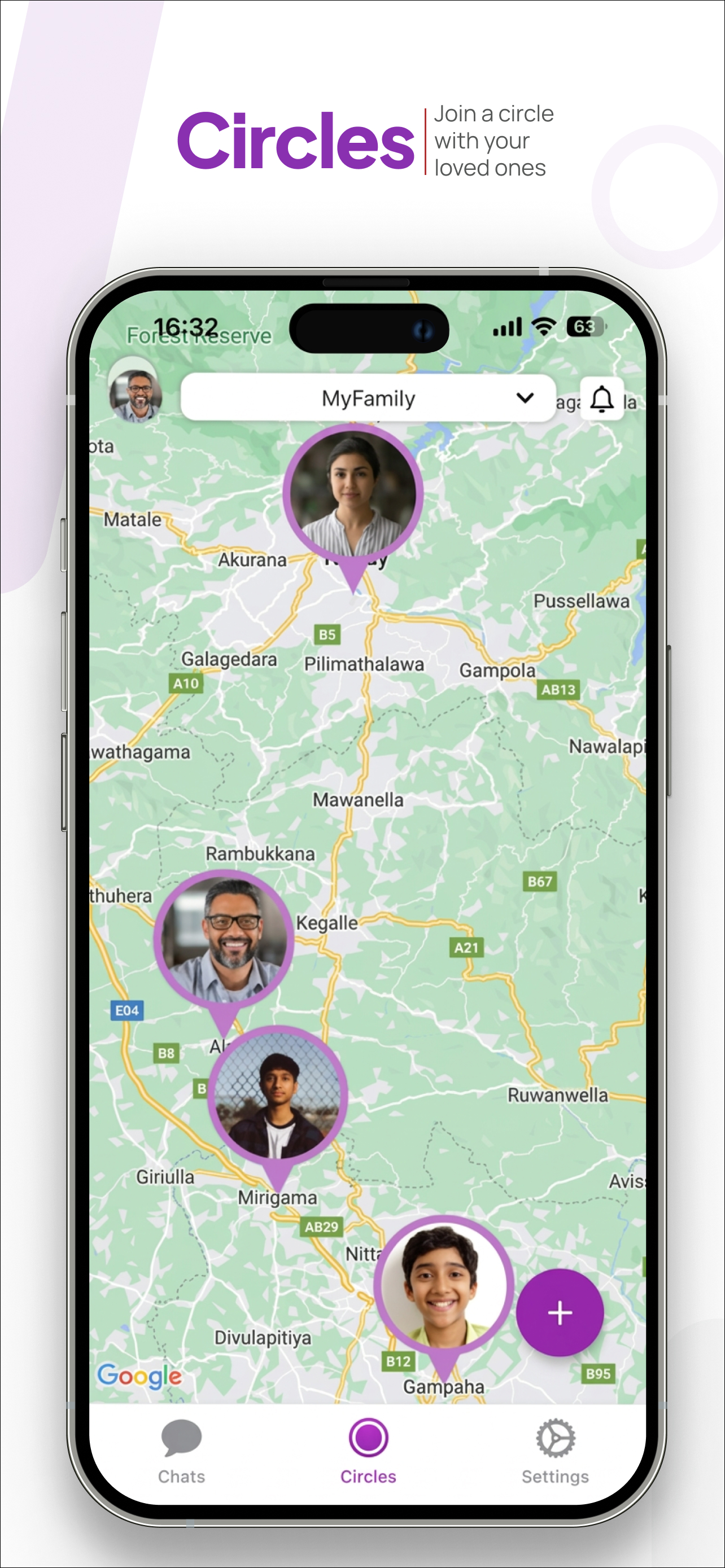
After logging in, tap the + button on the Circles tab. Give it a name — "MyFamily" is the default, but you can name it anything. Your profile photo will appear as the first pin on the map.
Step 2: Invite your first member
Tap Add User at the bottom of the Circles screen. You can share an invite via:
- Link — share via any messaging app
- QR code — perfect for in-person setup
The person you invite will receive a notification. Once they accept, their location pin appears on your shared map — and yours appears on theirs.
This is the critical point: both parties are aware of the sharing. WheresNow has no hidden or one-way tracking mode. Everyone in a Circle can see everyone else.
Step 3: Manage permissions
Each member in a Circle can control their own sharing:
- Pause location sharing — useful when you want private time
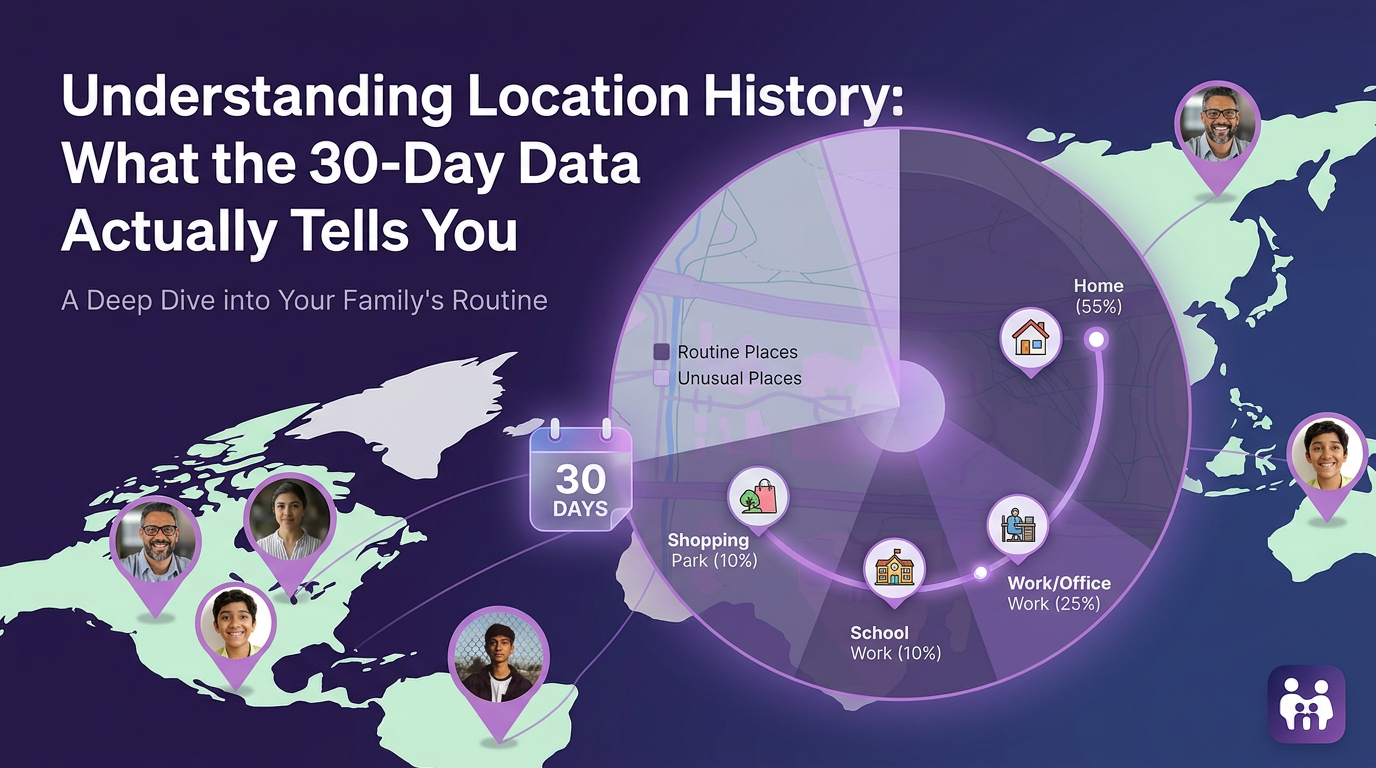
- History visibility — choose whether others can see your location history or just your live position
- Quiet hours — auto-pause location sharing during set hours (useful at night)
These settings are per-Circle, so you might share full history in your Family Circle but only live location in a Friends Circle.
Creating multiple Circles
There's no cap on the number of Circles you can create or belong to. Switch between them using the dropdown at the top of the map. The notification badge on the Circles tab shows you when new activity happens in any Circle.
Tips for a smooth setup
- Start with two people — you and one family member. Get comfortable, then expand.
- Use the invite link — it's the fastest way, especially if the other person isn't in the same room.
- Check that location permissions are set to "Always" in phone settings, otherwise background updates won't work.
Download WheresNow and set up your first Circle in minutes.